
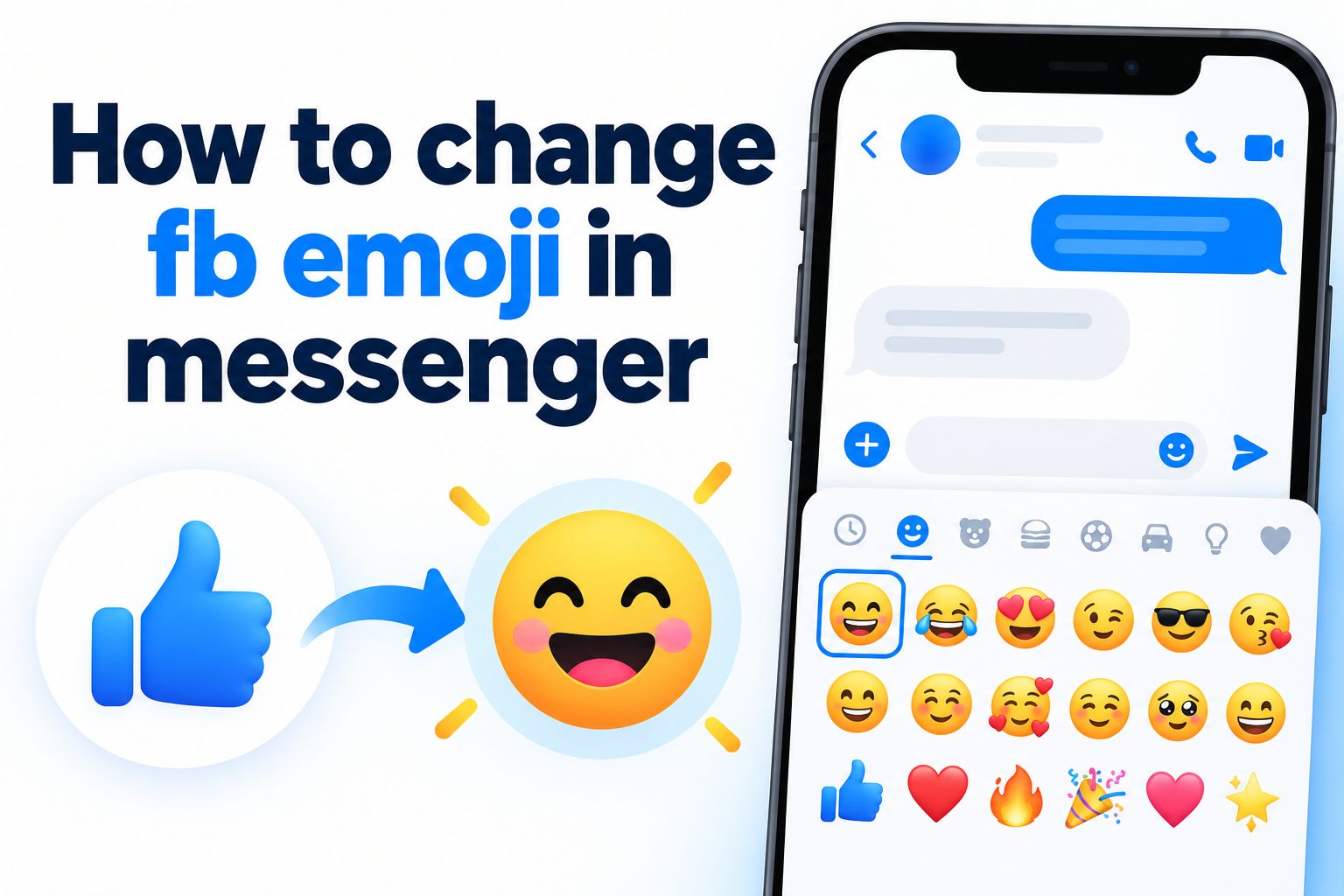
If you want to learn how to change fb emoji in messenger, you are in the right place because this small setting can make your chats feel more fun and personal. By default, Messenger gives every conversation a quick thumbs up emoji, but you can replace it with any emoji that matches your mood, friendship, or chat style. Many people do not realize how easy this change is on phones and computers. In this complete guide, you will learn what the feature means, why it matters, how to do it step by step on Android, iPhone, and desktop, plus creative ideas, common mistakes, best practices, real use cases, and answers to frequent questions.
Whether you chat with your best friend, partner, family group, or coworkers, a custom emoji adds personality to every message. You will discover how to pick the right emoji, fix it when it does not work, and use it without confusing others. Keep reading to master this simple trick and make your Messenger conversations more expressive, organized, and enjoyable every single day.
Why Changing Messenger Emoji Improves Chats
Customizing your chat emoji is more than decoration. It changes how you react quickly, show emotion, and connect with people in every conversation.
1. Make Conversations Feel More Personal
When you learn how to change fb emoji in messenger, you can replace the generic thumbs up with something that reflects your relationship. A red heart for your partner or a laughing face for your best friend instantly makes the chat feel warmer. This small personal touch shows thoughtfulness and helps every quick reaction feel more meaningful and unique to that specific person.
2. Express Emotions Faster And Better
Typing a full reply takes time, but a well chosen emoji can show love, humor, agreement, or support in one tap. If your custom emoji matches how you usually respond, you will communicate faster without losing emotion. This is especially helpful during busy days when you want to acknowledge messages quickly while still sounding friendly, caring, and genuinely engaged in the conversation.
3. Give Each Chat Its Own Identity
Using a different emoji for each conversation helps your chats feel distinct and easy to remember. You might use a game controller for gaming friends, a coffee cup for coworkers, and a family house for relatives. This visual cue adds fun variety and helps you instantly recognize the tone of each chat before you even start typing your next message.
4. Strengthen Friendships And Relationships
Choosing an emoji together can become a small inside joke that strengthens your bond. Couples often pick hearts, best friends pick funny faces, and teams pick motivating symbols. When both people agree on the change, it creates a shared experience. That simple customization reminds you of good memories and makes everyday messaging feel more connected and special.
5. Improve Group Chat Engagement
In group chats, a fun custom emoji encourages more reactions and playful interaction. Instead of ignoring messages, members tap the unique emoji to show they agree or find something funny. This keeps the group active and lively. A creative choice can set the mood for the whole group, whether it is supportive, hilarious, relaxed, or focused on planning events.
6. Show Your Personality And Style
Your emoji choice says a lot about your personality without using words. A fire emoji shows energy, a star shows positivity, and a cute animal shows playfulness. Learning how to change fb emoji in messenger lets you showcase your style in every chat. It is a simple form of self expression that makes digital communication feel more human and authentic.
Change Messenger Emoji On Android Phones
Follow these simple steps to update your quick reaction emoji in the Messenger Android app in less than a minute.
- Open The Messenger App: Launch Messenger on your Android phone and make sure you are logged into the correct Facebook account.
- Select The Conversation: Tap the chat where you want to change the emoji, whether it is a one to one chat or a group.
- Open Chat Details: Tap the contact name or group name at the top of the screen to open settings.
- Choose Emoji Option: Find and tap the emoji or theme section, then select the emoji setting for quick reactions.
- Pick Your New Emoji: Scroll through the emoji picker and tap your favorite symbol to preview how it looks.
- Confirm Your Choice: Tap save or select to apply the new emoji to that specific conversation instantly.
- Test Your Reaction: Long press any message to see your new emoji and tap it to send a quick reaction.
- Repeat For Other Chats: Change other conversations individually since each chat keeps its own separate emoji setting.
Change Messenger Emoji On iPhone Devices
The process on iPhone is very similar, but menu names and gestures can look slightly different on iOS devices.
1. Update Messenger App First
Before you try to learn how to change fb emoji in messenger on iPhone, open the App Store and make sure Messenger is updated to the latest version. Older versions may show different menus or miss the customization option completely. Updating ensures you see the newest emoji picker, theme options, and bug fixes that make the whole process smoother and more reliable for all chats.
2. Open Your Desired Conversation
Launch Messenger on your iPhone and tap the conversation you want to personalize from your chat list. You can choose a private chat or a group conversation. Each chat has its own independent emoji setting, so pick carefully. Opening the right thread first prevents you from accidentally changing the emoji in the wrong conversation with another friend.
3. Access Profile And Theme Settings
Tap the person name or group name at the top to open chat settings. Look for the theme, emoji, or customization section depending on your app version. Apple devices sometimes group these options together under appearance settings. Once you find the emoji option, tap it to open the full gallery of available emojis for quick reactions and chat shortcuts.
4. Browse And Select New Emoji
Scroll through the emoji categories to find one that fits the chat personality. You can choose hearts, funny faces, animals, food, sports, or symbols. Tap the emoji to preview it at the top of the picker. Take a moment to think about how often you will use it, because this icon will become your default one tap reaction for that entire conversation going forward.
5. Save And Sync Changes
After selecting your favorite emoji, confirm your choice to save it. The change should sync instantly across your iPhone, iPad, and desktop if you use the same account. Other participants in the chat will see a notification that the emoji was changed. If it does not appear immediately, close and reopen the chat to refresh the conversation view completely.
6. Test Long Press Reaction
Press and hold any message bubble to open the reaction bar and confirm your new emoji appears. Tap it once to send a reaction and check that the other person can see it correctly. If the emoji looks wrong or does not send, restart Messenger and try again. Testing ensures your customization works properly before you continue chatting with friends and family members.
Change Messenger Emoji On Desktop Computers
You can also customize your emoji from a browser or desktop app, which is perfect when you chat while working.
1. Open Messenger On Browser
To start learning how to change fb emoji in messenger on a computer, open your preferred browser and log into your Facebook account. Then open Messenger from the menu. The desktop layout is wider and easier to navigate. Make sure you have a stable internet connection so your customization saves correctly without interruption or syncing delays across devices.
2. Select Chat From Sidebar
Browse the left sidebar to find the conversation you want to edit. Click on the chat to open it in the main window. Both individual and group chats support custom emojis. Choosing the correct conversation is important because changes apply only to that thread. Double check the name and profile picture before proceeding to customization settings.
3. Open Conversation Information Panel
Click the contact name at the top or the information icon on the right side to reveal chat details. This panel contains options for themes, nicknames, notifications, and emoji settings. The desktop interface groups these personalization tools together. Take a moment to explore the panel so you understand all available choices beyond just changing the quick reaction emoji.
4. Find Customize Chat Option
Look for the customize chat or change emoji option inside the information panel. Click it to open the emoji picker window. Desktop versions show a larger grid that makes searching easier. If you cannot find the option, update your browser or try the standalone Messenger desktop app, which sometimes displays settings more clearly than the web version.
5. Choose And Apply Emoji
Click your preferred emoji from the full collection to set it as the default quick reaction. The preview will update instantly at the bottom of the chat window. Your selection saves automatically in most cases. Everyone in the conversation will be notified of the change. Pick something clear and visible, since small details can look different on larger computer screens.
6. Verify Across Devices
After changing the emoji on desktop, check your phone to confirm the update synced correctly to mobile. Send a test reaction from your computer and view it on your phone. This cross check ensures consistency. If syncing fails, log out and log back in on both devices. Proper syncing guarantees a smooth messaging experience wherever you chat next.
Popular Messenger Emoji Ideas For Friends
Need inspiration for your next chat emoji. These popular ideas work well for different relationships and moods.
- Red Heart: Perfect for partners, close friends, and family to show love and warmth in every quick reaction.
- Laughing Face: Great for funny friends who share memes, jokes, and lighthearted daily updates.
- Thumbs Up: Keep the classic choice for work chats where simple agreement looks professional and clear.
- Fire Symbol: Ideal for energetic friends, sports groups, and Motivational chats that celebrate wins and achievements.
- Pizza Slice: Fun for food lovers, roommates, and weekend planning groups that often discuss dinner plans.
- Dog Face: Cute and friendly option for animal lovers, siblings, and cheerful conversations that need positivity.
What Messenger Emoji Settings Really Mean
Many users confuse the quick reaction emoji with other emoji features inside Messenger.
The default quick reaction is the emoji that appears when you long press a message. Changing it does not change your keyboard or the emojis you can type. It only changes that one tap shortcut for faster responses.
Messenger also offers themes, stickers, and effects that work alongside your emoji choice. Themes change colors and backgrounds, while your custom emoji controls reactions. They work together to create a complete chat style.
Each conversation keeps its own separate emoji setting for privacy and personalization. Changing one chat will not affect others. This lets you use professional emojis for work and playful emojis for friends without mixing tones.
When anyone changes the emoji, Messenger shows a system message in the chat. This keeps things transparent and avoids confusion. If someone else changes it, you can easily change it back or pick something you both enjoy using.
Common Messenger Emoji Mistakes To Avoid
Avoid these frequent errors so your emoji change works smoothly and does not annoy other chat members.
1. Changing Emoji Without Asking Others
One common mistake when people learn how to change fb emoji in messenger is updating a group emoji without checking with members first. This can feel rude if others liked the old one. Always ask briefly in group chats before making a switch. A quick poll or friendly question prevents misunderstandings and keeps everyone happy with the new personalized choice.
2. Using Confusing Or Unclear Emojis
Choosing a very rare or unclear emoji can confuse people when they see your reactions. If they cannot tell whether you mean yes, funny, or love, communication suffers. Stick to widely recognized symbols with clear meanings. Simple hearts, smileys, and thumbs are better than obscure objects that require guessing and slow down the natural flow of conversation.
3. Forgetting Each Chat Is Separate
Many beginners think changing one emoji updates all chats at once, then feel frustrated when other conversations stay the same. Remember that Messenger saves settings per thread. You must repeat the steps for each friend or group. Keeping a consistent style across important chats takes extra time but creates a more organized and enjoyable messaging experience overall.
4. Using Outdated App Versions
Trying to customize with an old app often leads to missing buttons or failed saves. Users blame Messenger when the real problem is outdated software. Always update Android, iPhone, or desktop apps before troubleshooting. New versions fix bugs, improve the emoji picker, and ensure your changes sync correctly across all devices linked to your Facebook account.
5. Picking Unprofessional Emoji For Work
Using a silly or romantic emoji in a professional group can look careless and damage your image. Work chats need neutral choices like thumbs up, checkmark, or handshake. Think about your audience before customizing. Keeping work reactions clean and respectful shows maturity and helps you communicate clearly without sending the wrong emotional signal to colleagues or managers.
6. Not Testing After Changing
Some people change the emoji and assume it worked without checking. Later they discover it did not save due to poor internet or app glitches. Always long press a message to verify your new reaction appears correctly. Testing takes five seconds and confirms success. If it fails, you can retry immediately instead of finding out days later during important conversations.
Best Practices For Messenger Emoji Style
Follow these expert practices to choose emojis that feel thoughtful, clear, and fun for every type of conversation.
1. Match Emoji To Relationship Tone
The best approach when deciding how to change fb emoji in messenger is to match the symbol to your relationship. Use romantic hearts for partners, supportive icons for family, and funny faces for close friends. When the emoji reflects real feelings, reactions feel natural. This thoughtful matching avoids awkward moments and makes every quick tap feel intentional and emotionally appropriate for that chat.
2. Keep It Simple And Recognizable
Choose emojis that everyone understands instantly, even on small screens. Bright faces, hearts, and hand gestures work better than detailed objects. Simplicity improves readability and prevents confusion. When other members instantly recognize your reaction meaning, conversations flow faster. Avoid overly complex designs that lose detail on mobile devices or look blurry in the reaction bar.
3. Update Emoji For Special Occasions
Change your chat emoji temporarily for birthdays, holidays, trips, or celebrations to add excitement. A pumpkin for Halloween, a gift for birthdays, or a beach icon for vacations makes chats festive. After the event, you can switch back. This seasonal habit keeps messaging fresh and shows you pay attention to shared moments and meaningful events in each relationship.
4. Agree On Group Choices Together
In group conversations, let everyone vote on the new emoji instead of deciding alone. This builds teamwork and prevents arguments. You can rotate choices monthly for fun. When all members feel included, they use reactions more often. Collaborative decisions turn a simple setting into a bonding activity that reflects the personality of the entire group dynamic.
5. Use Different Emojis For Priorities
Assign specific emojis to signal urgency or importance across chats. For example, keep a red exclamation heart for family emergencies and a green check for work approvals. This system helps you scan reactions quickly. Organized emoji use improves clarity, especially if you manage many chats daily. Thoughtful organization turns reactions into a helpful visual communication tool.
6. Refresh Your Style Occasionally
Do not keep the same emoji for years if your relationship or mood changes. Refresh your choice every few months to reflect growth and new inside jokes. Trying new emojis keeps conversations playful and interesting. Regular updates also help you discover newly released symbols. A fresh reaction style shows creativity and keeps your Messenger experience enjoyable over time.
Practical Messenger Emoji Use Cases
See how different people use custom emojis in real life to improve communication and add personality to daily chats.
1. Couples And Romantic Partners
Couples often use this feature to replace thumbs up with a red heart, kiss, or ring emoji. This makes every quick acknowledgment feel loving instead of cold. Partners can tap the custom heart to say thinking of you without typing. This small romantic habit strengthens daily connection and adds warmth to routine check ins, goodnight messages, and quick love notes throughout busy days.
2. Best Friends And Funny Chats
Best friends love setting hilarious emojis like clown faces, skulls, or crying laughing symbols. These choices match their meme sharing and joking style. Every reaction becomes part of the humor. Friends often compete to find the funniest new emoji. This playful customization keeps long distance friendships lively and turns ordinary updates into entertaining exchanges full of laughter and personality.
3. Family Groups And Relatives
Families use house, heart hands, or prayer emojis to show care and unity. Parents appreciate simple symbols that are easy to see and tap. A warm custom emoji helps grandparents feel included. Family groups often choose supportive icons for health updates, celebrations, and daily encouragement. This thoughtful touch makes group messaging feel more caring, respectful, and emotionally connected for all ages.
4. Work Teams And Study Groups
Professional chats benefit from clear emojis like checkmarks, thumbs up, or light bulbs. Teammates use them to approve tasks, acknowledge updates, or share ideas quickly. Students use books or pencils for study groups. These practical choices save time and keep tone professional. A well chosen work emoji improves productivity by making approvals and feedback faster without long unnecessary message threads.
5. Gaming And Hobby Communities
Gamers often pick controllers, trophies, or fire emojis to match their competitive energy. Hobby groups use cameras, music notes, or sports balls. These themed reactions celebrate wins and shared interests. Members feel more united when their emoji reflects the community passion. Custom symbols turn planning sessions and victory chats into more immersive and exciting group experiences for everyone involved.
6. Event Planning And Travel Groups
Travel friends use airplane, beach, or map emojis while planning trips. Party planners use balloons or confetti to build excitement. These contextual choices keep everyone focused on the event goal. Quick reactions with themed emojis help vote on ideas faster. This practical use makes organizing easier and adds festive energy to every planning message before the big day arrives.
Advanced Messenger Emoji Tips For Power Users
Once you know the basics, these advanced tricks will help you get even more value from emoji customization.
1. Combine Emoji With Chat Themes
Power users know that learning how to change fb emoji in messenger works best when paired with matching chat themes. Choose a color theme that complements your emoji style. For example, pair a red heart with a love theme or a beach emoji with an ocean theme. This coordinated look makes conversations visually appealing and creates a more immersive messaging atmosphere for both participants.
2. Rotate Emojis Based On Moods
Instead of keeping one emoji forever, change it based on seasons, moods, or ongoing jokes. Use a sleepy face during exam weeks, a party icon during celebrations, or a motivational symbol during fitness challenges. This dynamic approach keeps chats relevant. Friends will notice and appreciate the effort, making your conversations feel more attentive and emotionally in tune with real life.
3. Use Emoji To Organize Priority Chats
Assign bright or unique emojis to your most important chats so they stand out when scanning reactions. For example, use a star for your boss and a heart for family. This visual system helps you prioritize replies faster. When you manage dozens of conversations, these subtle cues reduce stress and help you focus first on messages that truly need immediate attention and care.
4. Fix Sync Issues Quickly
If your new emoji shows on phone but not on desktop, clear cache, update apps, and re login to force syncing. Poor internet often causes delays. Turn on automatic updates to prevent version mismatches. Understanding basic troubleshooting saves time. Most sync problems resolve after restarting Messenger or switching networks, so do not panic if changes take a few minutes to appear everywhere.
5. Explore New Emoji Releases
Facebook regularly adds new emojis with system updates. Check the picker every few months for fresh faces, animals, and symbols. Trying new releases keeps your chats modern and fun. New emojis often include more inclusive and expressive options. Staying updated ensures you always have the best tools to express emotions accurately and creatively in every type of Messenger conversation.
6. Respect Privacy In Shared Chats
Remember that emoji changes notify everyone and remain visible to all members. Avoid romantic or sensitive emojis in mixed groups where they could cause discomfort. Choose neutral and inclusive symbols for public communities. Thoughtful privacy awareness prevents drama. Always consider who can see your choice before applying it, especially in large groups with coworkers, classmates, or distant acquaintances.
Frequently Asked Questions
1. How To Change Fb Emoji In Messenger For One Person
Open the specific chat, tap the name at the top, choose the emoji or theme option, and pick your new symbol. The change applies only to that conversation and other chats stay the same. The other person will see a notice about the update and can react with the same emoji.
2. Why Can I Not Change My Messenger Emoji
You may have an outdated app, poor internet, or restricted group permissions. Update Messenger, restart your phone, and check your connection. In some groups, admins limit customization. Try again after updating. If it still fails, reinstall the app or try from desktop to refresh settings.
3. Does Changing Emoji Notify The Other Person
Yes, Messenger shows a system message in the chat when the emoji is changed. Everyone in the conversation can see who made the change and what the new emoji is. This keeps customization transparent. If you prefer privacy, tell the other person beforehand so the notification does not surprise them.
4. Can I Use Any Emoji As Messenger Quick Reaction
In most updated versions, you can choose from nearly the full emoji library, including hearts, faces, animals, food, and symbols. Some very new or animated emojis may not be available as quick reactions. If your favorite is missing, update the app and check again for expanded choices.
5. How To Reset Messenger Emoji To Default
Open chat settings, go to emoji options, and select the classic thumbs up emoji to restore the original default. Save your choice and test with a long press. This works for individual and group chats. Resetting is helpful when you want a neutral professional look after using fun seasonal emojis.
6. Will Custom Emoji Show On All Devices
Yes, your custom emoji should sync across Android, iPhone, and desktop when you use the same Facebook account. Make sure all apps are updated and connected to the internet. If syncing is slow, log out and log back in. Proper syncing ensures consistent reactions wherever you message.
Conclusion
Learning how to change fb emoji in messenger is a quick and enjoyable way to personalize every conversation. You now know how to update it on Android, iPhone, and desktop, plus how to choose meaningful emojis, avoid common mistakes, and apply best practices for friends, family, and work chats.
Start by updating one favorite conversation today with an emoji that truly represents your bond. Test it, share the fun with others, and refresh it whenever your mood changes. This tiny customization can make daily messaging warmer, clearer, and much more fun for everyone involved.