
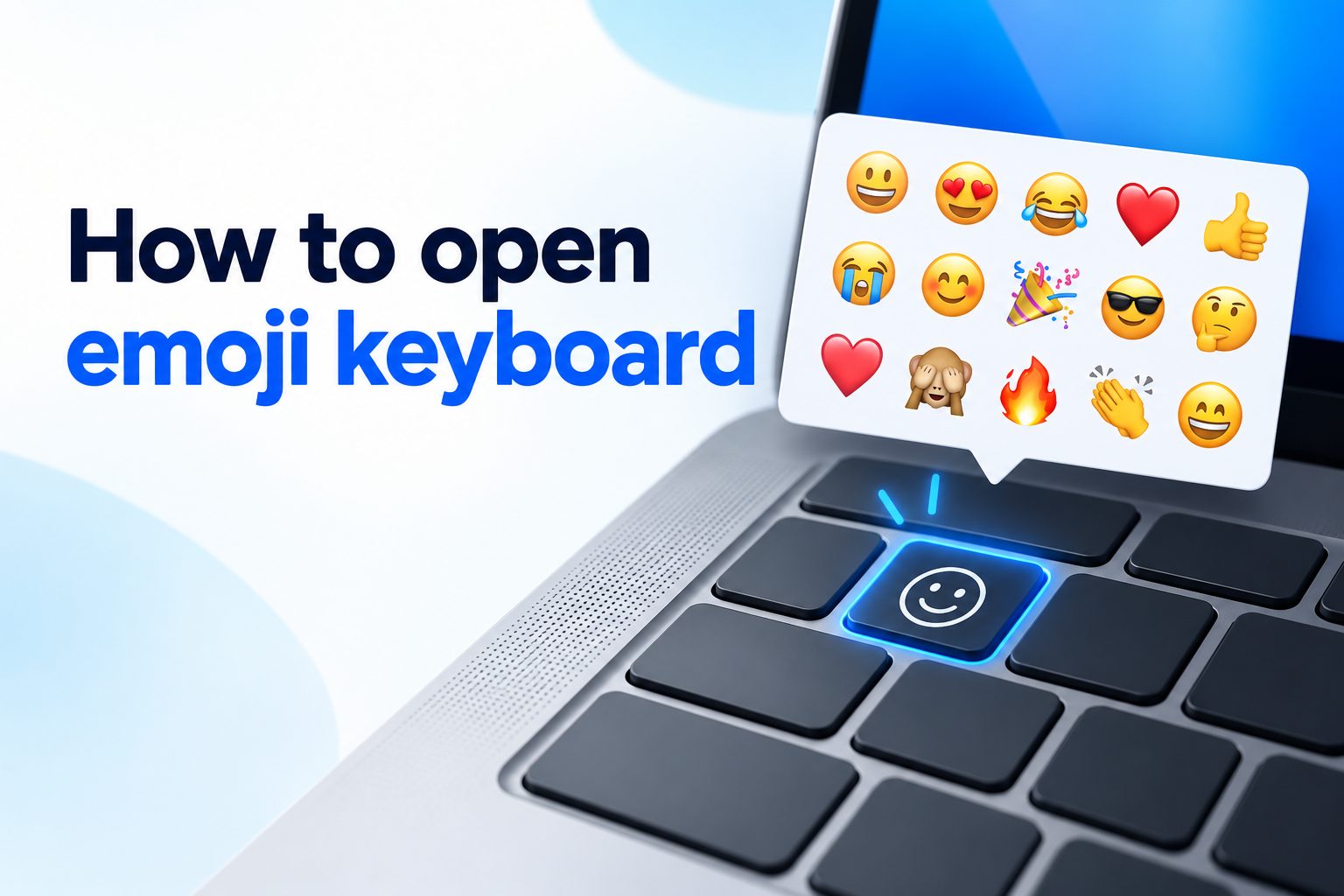
Learning how to open emoji keyboard can make your messages more expressive, friendly, and fun on any device you use every day. Emojis help you show emotions, reactions, and tone that plain text often cannot convey clearly. Whether you are chatting with friends, replying to emails, writing social media captions, or adding personality to work messages, quick access to emojis saves time and effort. Many people do not realize their phone or computer already has a built-in emoji keyboard ready to use. In this complete guide, you will learn how to open emoji keyboard on Windows, Mac, iPhone, Android, and popular apps, plus expert tips to use it faster and fix common problems.
Throughout this article, we will walk through simple shortcuts, touch methods, settings to check, benefits of daily emoji use, mistakes to avoid, and best practices that keep your communication clear and professional. You will also find practical troubleshooting steps and answers to frequently asked questions. By the end, you will be able to open emoji keyboard in seconds on any platform and use it with confidence for personal and professional conversations.
Why Emoji Keyboard Makes Typing Easier
An emoji keyboard gives you instant access to thousands of small visual symbols that add emotion and context to your words. Instead of typing long explanations, a single emoji can show happiness, agreement, humor, or support in a friendly and universal way.
Using emojis regularly improves communication because people understand tone much faster when they see a visual cue. A simple smile can soften a short reply, while a celebration emoji can make congratulations feel warmer and more genuine across different cultures and age groups.
Most modern devices include an emoji keyboard by default, so you do not need to download extra software to get started. Windows, macOS, iOS, and Android all offer built-in panels that can be opened with a shortcut, a tap, or a menu option in seconds.
For example, office workers use emojis to make team chats feel approachable, while creators use them to increase engagement on posts and comments. Students, parents, and business owners all benefit from faster, clearer messages that feel more human and less formal.
The key takeaway is that knowing how to open emoji keyboard helps you communicate faster and connect better. Once you learn the shortcuts for each device, you will save time, avoid frustration, and enjoy a more expressive typing experience everywhere.
Open Emoji Keyboard On Windows Devices
Windows includes a built-in emoji panel that works in almost any app. Use these methods to open emoji keyboard quickly on Windows 10 and Windows 11.
1. Use Default Shortcut On Windows
Press the Windows key plus the period key together to open emoji keyboard instantly on most Windows computers. This shortcut works in browsers, documents, chat apps, and search boxes without changing any settings. Once the small panel appears, you can type to search or click any emoji to insert it directly into your text field.
2. Try Alternate Shortcut For Emoji Panel
Press the Windows key plus the semicolon key as an alternative way to launch the same emoji keyboard panel. This option is helpful if your keyboard layout makes the period shortcut difficult to use comfortably. The panel includes emojis, symbols, and recent history, allowing you to switch categories quickly and find the perfect expression for your message.
3. Open Emoji Keyboard With Touch Keyboard
Tap the touch keyboard icon in the taskbar to open the on-screen keyboard, then select the smiley face icon to switch to emojis. This method is ideal for tablets, touchscreen laptops, and two-in-one devices where physical shortcuts are less convenient. You can browse smileys, animals, food, activities, and symbols with large touch-friendly buttons for fast selection.
4. Enable Touch Keyboard Icon In Taskbar
Right click the taskbar and turn on the touch keyboard option if you do not see the keyboard icon available. After enabling it, the icon will stay visible for quick access whenever you need emojis or special characters. This setup is especially useful for users who frequently switch between typing and emoji input during long chat sessions or social media work.
5. Search Emojis By Keyword Quickly
Type a word like happy, heart, or star after opening the panel to filter relevant emoji options automatically. This search feature saves time compared to scrolling through hundreds of icons manually across multiple categories. It also helps you discover new emojis that match your mood, making your messages more accurate and visually appealing with minimal effort.
6. Use Kaomoji And Symbols Section
Explore the kaomoji and symbols tabs inside the Windows emoji panel for extra creative expression beyond standard emojis. You will find text faces, currency signs, arrows, and special characters that improve documents and casual messages. These extras are perfect for adding personality to emails, usernames, notes, and presentations without installing third-party tools or copying from websites.
Open Emoji Keyboard On Mac Computers
Mac computers offer a fast character viewer for emojis and symbols. These simple methods will help you open emoji keyboard in any Mac app.
1. Use Control Command Space Shortcut
Press Control, Command, and Space together to open emoji keyboard on any Mac while typing in documents, messages, or browsers. This universal shortcut brings up a small pop-up window near your cursor for immediate selection. You can scroll through categories or type a keyword to find smileys, gestures, objects, and flags without leaving your current application.
2. Open Through Edit Menu Option
Click Edit in the top menu bar and choose Emoji and Symbols when you forget the keyboard shortcut or prefer using the mouse. This menu option launches the same character viewer and works in most Apple and third-party applications. It is a reliable backup method for beginners who are still learning Mac shortcuts and want a visual way to access emojis.
3. Expand To Full Character Viewer
Click the small icon in the top right of the emoji pop-up to expand the full character viewer with more categories. The expanded window lets you browse arrows, pictographs, technical symbols, and accented letters in an organized sidebar. You can add favorites, adjust sizes, and insert multiple characters quickly, which is helpful for creative projects and detailed documents.
4. Add Emoji Button To Menu Bar
Open System Settings, go to Keyboard settings, and enable the input menu to show emoji options in the menu bar. Once enabled, you can click the icon and select Show Emojis and Symbols from anywhere on your Mac. This constant access is convenient for frequent emoji users who want one-click entry without remembering key combinations every time.
5. Use Touch Bar For Quick Emojis
Tap the smiley face icon on the Touch Bar if your MacBook Pro model includes this feature above the keyboard. The Touch Bar displays suggested emojis based on what you type, allowing one-tap insertion into messages and documents. This contextual suggestion saves time and encourages natural emoji use without interrupting your typing flow or opening extra windows.
6. Enable Dictation For Emoji Names
Turn on Dictation in System Settings and speak emoji names like smiling face or thumbs up to insert them hands-free. While not as precise as visual selection, this method helps with accessibility and multitasking when your hands are busy. You can combine voice input with manual browsing to create a flexible workflow that suits different writing situations and physical needs.
Open Emoji Keyboard On iPhone And iPad
Apple mobile devices make emoji input very simple once the keyboard is enabled. Follow these steps to open emoji keyboard on iOS and iPadOS.
1. Tap Smiley Or Globe Icon
Open any app that uses the keyboard, then tap the smiley face or globe icon in the bottom left corner to switch to emojis. This single tap instantly replaces letters with colorful emoji categories ready for browsing. Tap the same icon again to return to the regular keyboard, making it easy to mix words and emojis naturally in every message you send.
2. Add Emoji Keyboard In Settings
Go to Settings, General, Keyboard, Keyboards, and Add New Keyboard, then select Emoji if the smiley icon is missing. This ensures the emoji layout is installed and available across all apps that accept text input. After adding it once, you will not need to repeat the process unless you reset your device or remove keyboards accidentally during cleanup.
3. Swipe Between Multiple Keyboards
Touch and hold the globe icon to see a list of installed keyboards, then choose Emoji from the pop-up menu. This method is helpful when you use two or three languages and need to switch layouts frequently throughout the day. It prevents accidental switching and lets you select exactly the input method you want for each specific conversation or document.
4. Search Emojis By Name
Tap the emoji keyboard and use the search field at the top to type words like cat, pizza, or celebration. Your iPhone will show matching emojis instantly, which is much faster than scrolling through pages of icons. This search function is especially useful after major iOS updates when dozens of new emojis are added to existing categories and collections.
5. Use Predictive Emoji Suggestions
Type a word like happy or dog in Messages and look at the suggestions bar above the keyboard for relevant emoji replacements. Tapping a suggestion converts the word into an emoji or adds one beside it automatically. This smart feature speeds up texting, reduces taps, and helps you discover emojis that perfectly match your sentence without opening the full panel.
6. Access Memoji And Stickers
Swipe left inside the emoji keyboard or open Messages to find Memoji stickers created from your personal avatar. These animated and static stickers add fun personalization beyond standard emojis for friends and family chats. You can customize skin tone, hairstyle, accessories, and expressions once, then reuse your stickers across many supported apps with just a few taps.
Open Emoji Keyboard On Android Phones
Android phones include emojis in Gboard, Samsung Keyboard, and most third-party keyboards. These methods cover the most common Android setups.
1. Tap Smiley Icon In Gboard
Open any text field and tap the smiley face icon next to the space bar to switch from letters to emojis in Gboard. You can then scroll sideways through smileys, animals, food, travel, and symbols organized in clear tabs. Tapping any emoji inserts it immediately, and the recent tab keeps your favorites ready for faster access during frequent conversations.
2. Open Emojis On Samsung Keyboard
Tap the smiley face or globe symbol on Samsung Keyboard to reveal emoji, GIF, and sticker options at the bottom. Samsung organizes emojis in categories with search support, similar to Gboard but with a slightly different layout. If the icon is hidden, check keyboard settings to enable alternative characters and ensure the emoji row appears consistently across messaging and social apps.
3. Long Press Enter For Emojis
Press and hold the Enter or Search key on some Android keyboards to reveal a hidden smiley shortcut for quick access. This trick helps when the main emoji button is small or rearranged after an update. Once the pop-up appears, slide your finger to the emoji icon and release to switch layouts without opening settings or changing your default keyboard application.
4. Search Emojis By Keyword
Tap the search icon inside the emoji panel and type happy, love, or car to filter matching results instantly. This keyword search works in both Gboard and Samsung Keyboard and saves significant scrolling time. It is particularly helpful for finding less common objects, flags, and profession emojis that are buried deep inside large categories with hundreds of similar options.
5. Enable Emoji In Keyboard Settings
Open Settings, System, Languages and Input, then check your keyboard preferences to ensure emoji and sticker options are turned on. Some custom themes or compact layouts hide the emoji key to save screen space on smaller phones. Re-enabling the dedicated key restores one-tap access and prevents frustration when you need to add expression quickly during busy chats.
6. Use Voice Typing For Emojis
Tap the microphone icon on Gboard and say the emoji name like laughing face emoji to insert it using your voice. While accuracy varies, voice input is useful for hands-free texting while cooking, driving with hands-free mode, or multitasking. You can always correct the result manually, but this method adds welcome flexibility for accessibility and convenience in everyday situations.
Key Benefits Of Emoji Keyboard For Daily Communication
Opening emoji keyboard regularly offers practical advantages for personal, social, and work conversations. These benefits show why emojis remain so popular across all age groups.
- Clearer Emotional Tone: Emojis reduce misunderstandings by showing humor, kindness, or excitement that plain words may hide.
- Faster Expression: One emoji can replace several words, helping you reply quickly without long typing sessions.
- Stronger Engagement: Posts and messages with emojis often get more attention, replies, and positive reactions from readers.
- Friendly Professional Image: Thoughtful emoji use makes team chats and customer replies feel warm and approachable.
- Universal Understanding: Simple visuals cross language barriers and help diverse audiences grasp your meaning faster.
- Creative Personal Style: Favorite emojis and combinations let you develop a recognizable voice in chats and social content.
Common Emoji Keyboard Mistakes To Avoid
Small errors can make emojis confusing or unprofessional. Avoid these common emoji keyboard mistakes to keep your messages clear and respectful.
1. Overusing Too Many Emojis Together
Adding five or six emojis in every sentence can overwhelm readers and hide your main message behind visual clutter. Instead, choose one or two relevant emojis that support your words without distracting from them. Clean and balanced messages look more thoughtful, load faster on slow connections, and are easier to understand for people using screen readers or translation tools daily.
2. Using Emojis With Unclear Meanings
Some emojis have different meanings across cultures, age groups, and platforms, which can cause accidental embarrassment or confusion. Before using a new or ambiguous emoji, check its common interpretation and preview how it looks on other devices. Sticking to well-known smileys and gestures for important messages helps you avoid miscommunication and maintains trust with colleagues, clients, and new contacts.
3. Ignoring Professional Context And Tone
Sending playful emojis in formal emails, job applications, or serious announcements can appear careless and reduce your credibility. Always consider your audience, company culture, and message purpose before adding colorful icons. A single friendly smile may be fine for team chats, but formal documents usually require clean text without decorative symbols to maintain respect and clarity.
4. Forgetting To Update Emoji Keyboard
Outdated systems may show blank boxes instead of new emojis because older software cannot render recent Unicode additions correctly. Keep your phone and computer updated to ensure you see the latest designs and others see yours properly. Regular updates also improve search, fix keyboard bugs, and add inclusive options like varied skin tones, family structures, and accessibility symbols for everyone.
5. Relying Only On Recently Used Tab
Staying only in the recent tab limits your choices and makes messages feel repetitive over time for frequent contacts. Explore full categories occasionally to discover fresh emojis that express your ideas more precisely and creatively. Learning category locations and search keywords expands your visual vocabulary and keeps conversations lively without requiring extra apps or downloads for inspiration.
6. Neglecting Accessibility For All Readers
Screen readers announce each emoji by name, so long strings of icons can be annoying and difficult to follow for visually impaired users. Place emojis at the end of sentences, avoid repeating the same icon many times, and keep essential information in plain words. These thoughtful habits make your content inclusive, professional, and enjoyable for a wider audience across social media and messaging platforms.
Best Practices For Emoji Keyboard Use
Smart habits help you get more value from emojis while keeping communication clear. Follow these best practices for emoji keyboard success on any device.
1. Match Emojis To Message Intent
Choose emojis that directly support your purpose, whether you want to congratulate, comfort, celebrate, or inform your reader clearly. A well-matched icon reinforces your words and removes doubt about your tone in sensitive conversations. Taking two extra seconds to select the right emoji prevents misunderstandings and shows attention to detail that people appreciate in both personal and business communication.
2. Keep Frequency Balanced And Natural
Use one to three emojis per message for most casual chats, and even fewer for professional updates or announcements. Balanced use keeps your text readable, visually appealing, and respectful of different communication styles. If you notice readers responding less or asking for clarification, reduce emoji density and focus on clear wording first, then add expression sparingly where it truly adds warmth.
3. Customize Favorites For Quick Access
Save frequently used emojis to favorites or rely on the recent section to build a personalized shortcut collection over time. Customization reduces scrolling, speeds up replies, and ensures consistent style across your messages. On phones and computers, you can also create text replacements that expand into favorite emojis automatically, which is ideal for business owners, creators, and busy parents.
4. Check Appearance Across Platforms
Preview important messages because the same emoji can look slightly different on Apple, Google, Samsung, and Windows devices. Color, size, and facial details vary enough to change subtle emotional nuance in sensitive contexts. For critical announcements, stick to universally clear symbols like check marks, hearts, and basic smileys that remain recognizable and friendly on every major platform and operating system version.
5. Combine Words And Emojis Thoughtfully
Place emojis after key phrases rather than replacing essential words, so your message remains understandable even if icons fail to load. This approach supports translation tools, search functions, and accessibility software that depend on readable text. Thoughtful combination also improves professionalism, because readers see complete sentences enhanced by visuals instead of puzzles that require decoding multiple ambiguous symbols.
6. Learn Shortcuts For Faster Typing
Memorize one main shortcut for each device you use daily, such as Windows period shortcut or Mac Command Control Space, to open emoji keyboard without pausing. Fast access encourages natural use and prevents workflow interruptions during writing, chatting, or commenting. Practice the shortcut a few times until it becomes muscle memory, then teach it to family or teammates to improve everyone’s communication speed and confidence.
Simple Steps To Fix Emoji Keyboard Problems
If you cannot open emoji keyboard, follow these practical steps to restore access quickly on phones and computers.
- Restart The App: Close and reopen the messaging app or browser to clear temporary glitches blocking the emoji panel.
- Check Keyboard Settings: Confirm the emoji keyboard is enabled in system language and input settings on your device.
- Update Your System: Install the latest operating system update to fix bugs and add support for new emoji characters.
- Try Alternate Shortcut: Use a different key combination or touch method if your usual shortcut stops responding unexpectedly.
- Clear Keyboard Cache: Clear cache for Gboard or Samsung Keyboard to remove corrupted data that prevents emojis from loading.
- Test In Another App: Open emojis in notes or search to determine whether the issue affects one app or the whole system.
- Remove Extra Keyboards: Disable unused third-party keyboards that may conflict with the default emoji layout and shortcuts.
- Reset Keyboard Dictionary: Reset keyboard settings as a last step if emojis still fail to appear after basic troubleshooting efforts.
Frequently Asked Questions
1. What Is The Shortcut To Open Emoji Keyboard On Windows
Press Windows key plus period or Windows key plus semicolon to open emoji keyboard on Windows 10 and Windows 11. The panel works in most text fields and lets you search, browse categories, and insert emojis instantly. If it does not appear, check that your system is updated and the touch keyboard service is enabled.
2. How Do I Open Emoji Keyboard On Mac
Press Control plus Command plus Space to open the emoji viewer on Mac in any app that accepts text. You can also go to the Edit menu and select Emoji and Symbols for the same panel. Use the search box to find specific icons quickly and click to insert them at your cursor position.
3. Where Is Emoji Keyboard On iPhone
Tap the smiley face or globe icon at the bottom left of the iPhone keyboard to switch to emojis. If you do not see it, add the Emoji keyboard under Settings, General, Keyboard, and Keyboards. You can then search, swipe through categories, and use predictive suggestions for faster texting in Messages and other apps.
4. Why Is My Emoji Keyboard Not Showing
Your emoji keyboard may be disabled, outdated, or hidden by a third-party theme that removes the smiley key. Check language and input settings, update your operating system, and restart the app you are using. Clearing keyboard cache on Android or re-adding the Emoji keyboard on iPhone usually restores normal access within minutes.
5. Can I Use Emoji Keyboard In Emails And Documents
Yes, you can use the same shortcuts to insert emojis into emails, documents, presentations, and spreadsheets on most devices. Use them sparingly in professional writing to maintain a polished tone and clear meaning. Simple smileys, check marks, and celebration icons work best when you want to add warmth without distracting from important information.
6. How Do I Find New Emojis After An Update
Open emoji keyboard and use the search field to type keywords related to new additions, or browse the recent and updated categories highlighted by your system. Updating your phone or computer ensures you receive the latest Unicode emoji set with correct designs. You can also check keyboard settings to confirm all categories and inclusive options are visible and ready to use.
Conclusion
Knowing how to open emoji keyboard on Windows, Mac, iPhone, and Android makes everyday communication faster, warmer, and more expressive. With simple shortcuts, touch buttons, and search features, you can find the right emoji in seconds without extra apps or complicated setup.
Start by practicing one shortcut for each device you use most, keep your system updated, and follow balanced best practices for clear results. With these skills, you will enjoy smoother chats, better engagement, and confident messaging in both personal and professional conversations.